Typography Animation with Veo 3
In this tutorial, you’ll learn how to create a realistic snow writing text effect using the Art Text app, then bring the typography to life with Google’s Veo 3, an Artificial Intelligence model for video generation. The final result will be a New Year greeting that appears to be naturally written into fresh snow.
Veo 3 AI allows you to upload starting and ending image frames and guide the AI model with a text prompt that describes the desired motion, style, or atmosphere. Based on these inputs, it then generates a smooth animated transition between the frames, giving you greater creative control over the final video.
Text Written on Snow Typography
Art Text lets you design text effects using 2D and 3D text tools, or by choosing from hundreds of ready-made typography templates for a quick start.
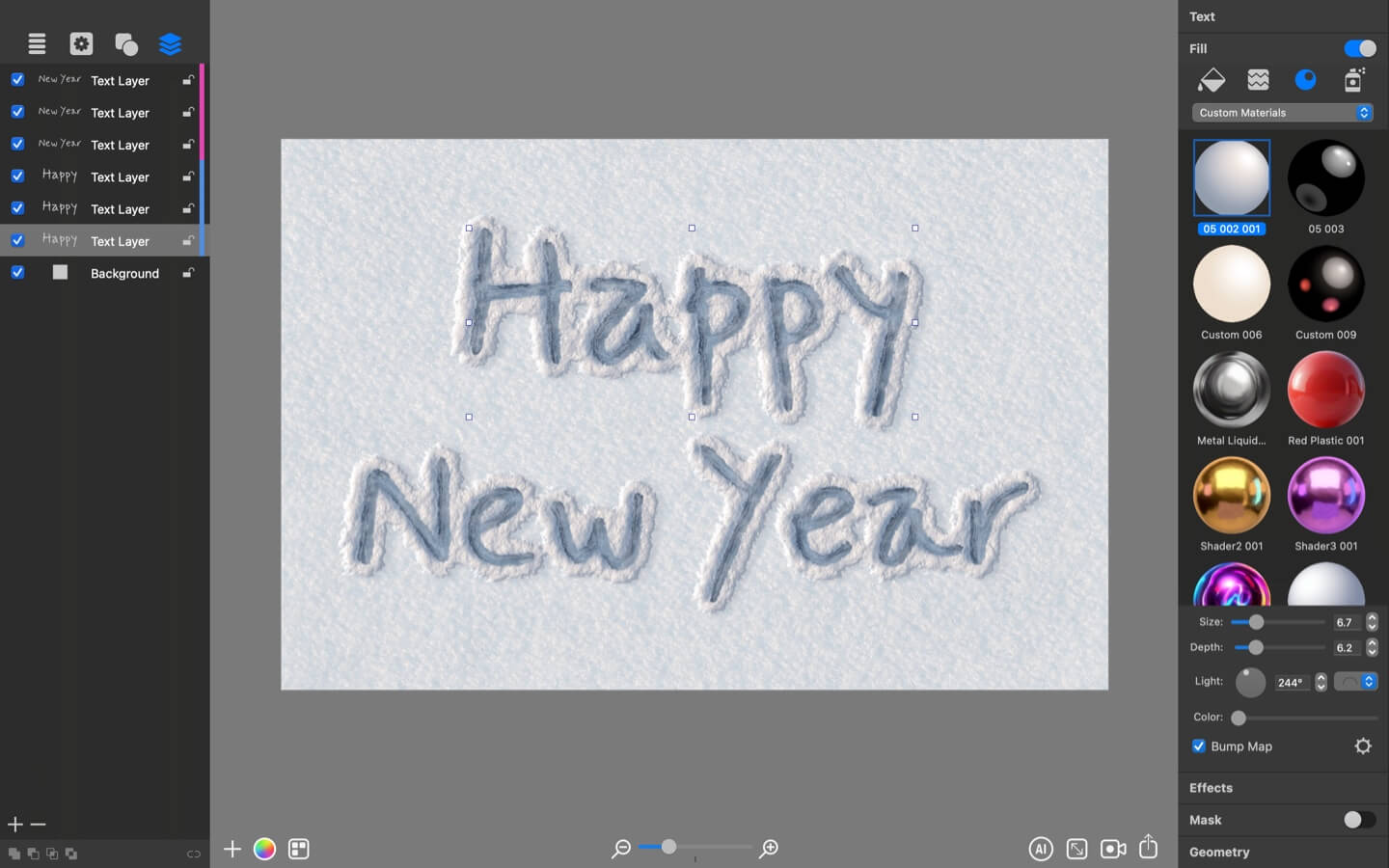
I will use one of the templates from the Christmas Joy set in the Templates Gallery. Next, I will change the text to Happy New Year. The message will be written as two independent text blocks, to do this I will use the duplicate function (Edit menu > Duplicate, or Command + D).
Adjust the text size and position, we are ready to move forward.
Enhancing Text Effect with Art Text AI
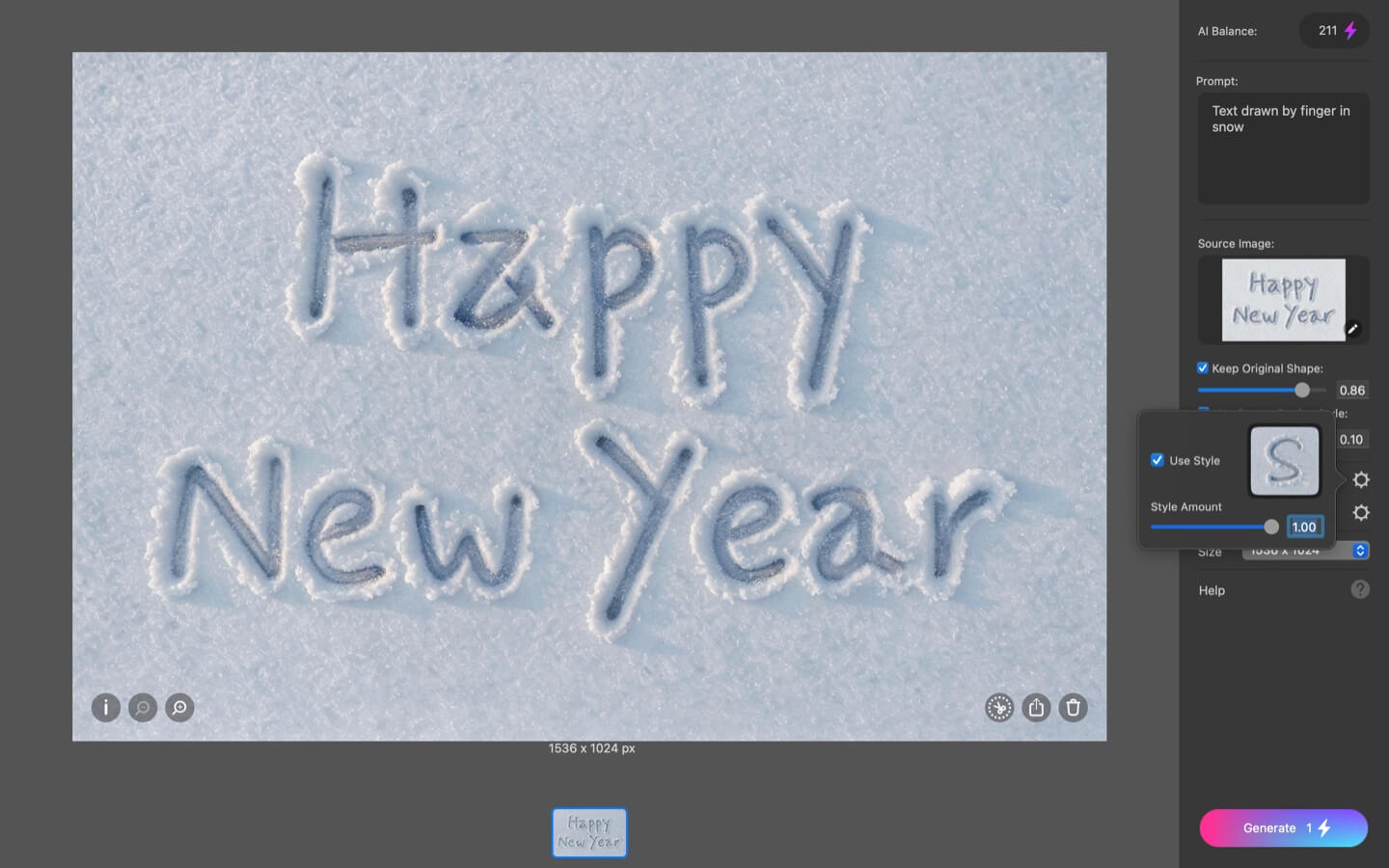
The AI Wizard in Art Text lets you use artificial intelligence to enhance text effects and make them more realistic. Click the AI button to access the AI Wizard. Since I used an AI-labeled template, the AI Wizard already has a prompt, style, and other settings preselected to ensure a high-quality result.
Make minor adjustments if needed, then press the Generate button.
Within a minute the AI will create an amazing snow written text. Export it to an image file, his will be the ending frame of the video animation.
Next, run another AI image generation with no text to create a clean snow surface. To do this, hide or delete the text in the Art Text document, increase the Keep Original Shape value in the AI Wizard, and press Generate.
Generating Animation with Veo 3 AI
Now that I have two images, one with plain snow and another with the message written in the snow, I can move on to the Google Flow service.
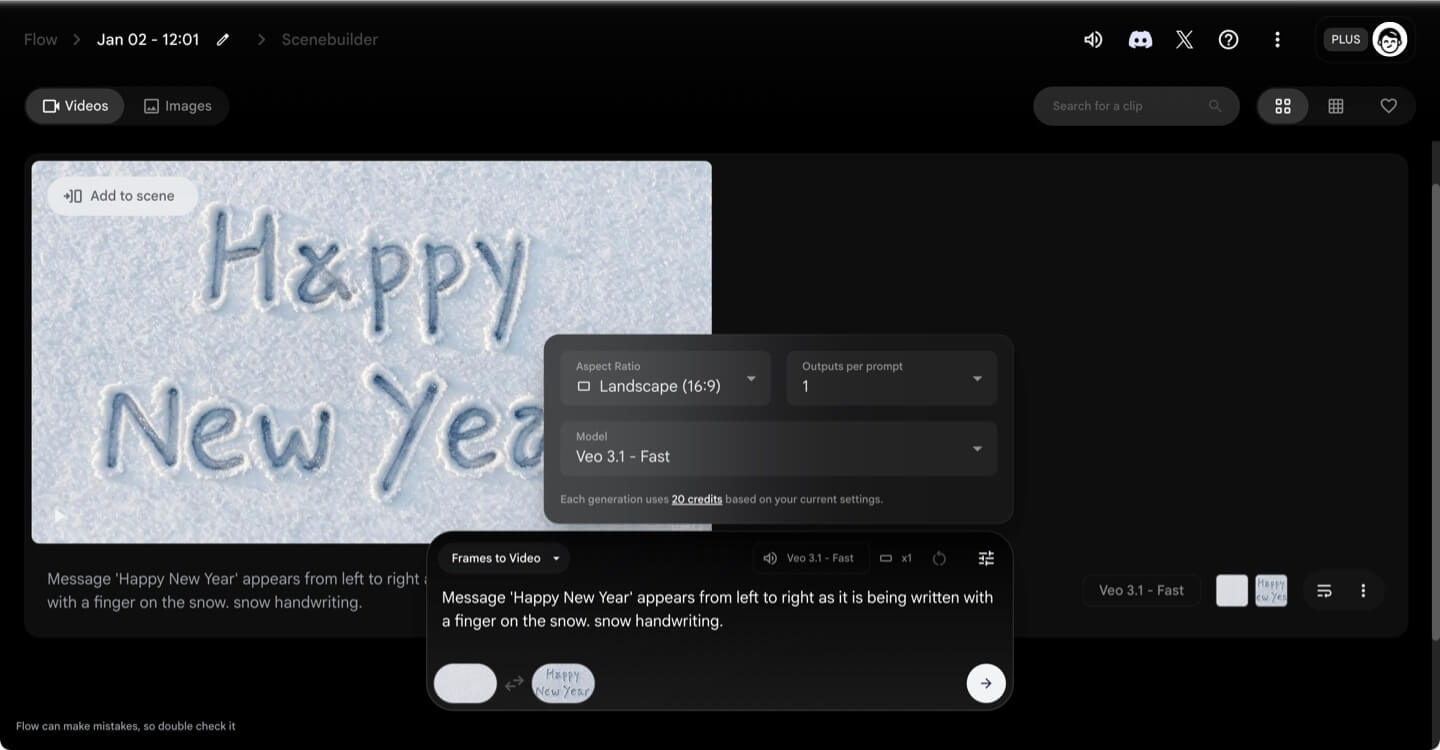
Start a new project. At the bottom, in the prompt box, select Frames to Video. This allows you to add starting and ending frames. Upload the images from your computer and crop them if needed.
Next, write a short prompt. You can be as specific and descriptive as you like.
Select Veo 3.1 Fast as the AI model. You can choose Veo 3.1 Quality instead, but it will consume more AI credits. Google offers 100 free ai credits to try the service to first time users.
Start the magic by pressing the right-facing arrow.
Within a minute, or slightly longer, you will see the animation result.
The final video can be downloaded as an animated GIF or MP4 file, upscaled, or extended beyond the default 8-second duration.
That’s it! You’ve created a short animation showing text being written into snow.